Personalisation & Gift Messages
Personalisation & Gift Messages
Intermediate
Scale
4:44
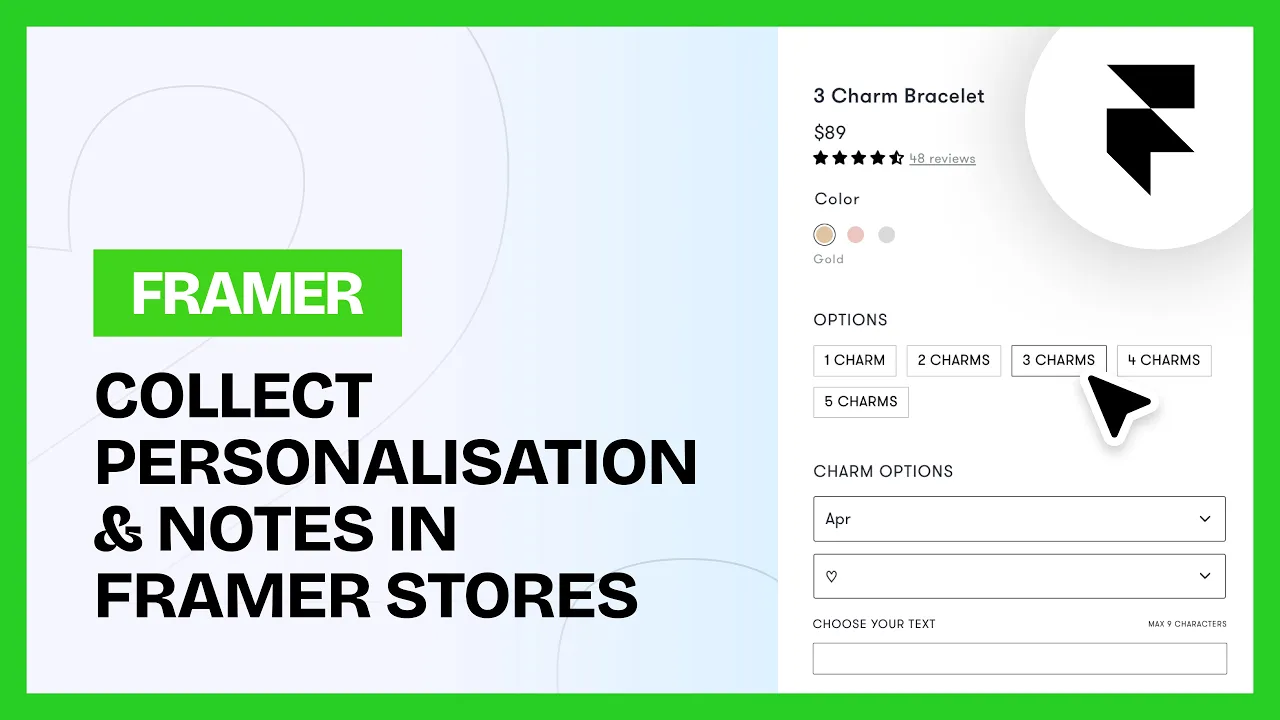
The Personalization Input lets customers add extra information to their order. It comes through to Shopify, so you can see it on the seller side.
You can set it up as:
Text input for short text
Text area for long text
Dropdown
Buttons
Checkbox
Date
You can add more than one to a single product and show them all in the cart.
How to add it
1. Insert the component
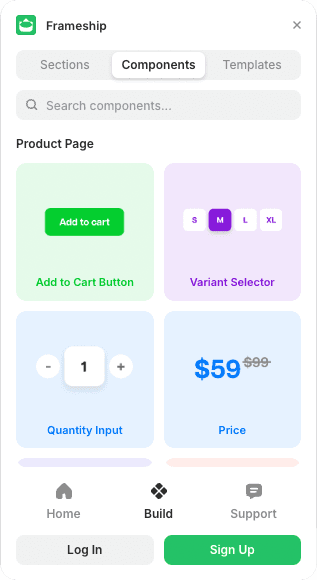
Open the Frameship plugin, find the Personalization Input under Product, and insert it onto your product CMS detail page.
2. Connect the data
Attach the Shopify data in the Properties panel on the right.
3. Configure the field
Field config options are all in the Properties panel.
💡 Note: To stop the component leaving an empty gap on products it doesn't apply to, use the Margin settings under Layer Style in the component settings, rather than a gap on the parent layer.
Common questions
Where do I see what the customer typed?
In Shopify, on the order. The input is passed through with the rest of the order details.
Can I have more than one on a product?
Yes. Add as many as you need and display them all in the cart.