Products

Education

Resources

Company

Support

How to Set Up a Frameship Template

How to Set Up a Frameship Template

Beginner

Launch

9:40

Frameship templates come with collection pages, a product detail page, cart, mega menu, hero gallery and FAQ, all pre-built and ready to connect to your store.

What you need first

  • A Frameship account

  • A live Shopify store with your products set up

All the Shopify data in a template is placeholder content. You replace it by syncing your own store.

How to sync your store

1. Open the plugin

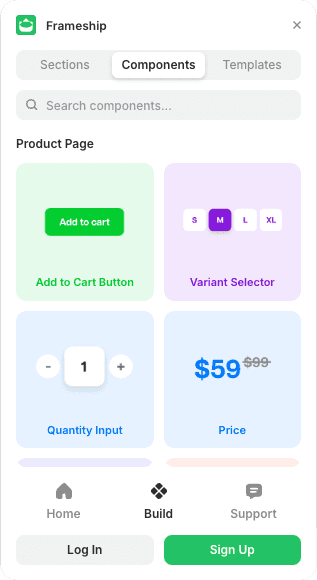
Open Frameship inside your template project.

2. Sync the collection

In the Framer CMS, click the sync tag on the existing collection.

3. Connect and sync

You'll be prompted to connect your Frameship account and sync your Shopify products. Once it's done, your products populate the CMS.

💡 Note: Connecting Shopify to Framer has the full walkthrough if you're setting the connection up from scratch.

Common questions

Will the template's demo products stay on my site?

No. The placeholder content is replaced when you sync your own store.

Do I need a license to use a template?

You can build and preview on a trial, but removing the banner from a published site needs a paid license activated.

START BUILDING NOW

START BUILDING NOW

Explore the Frameship plugin & power up your Framer website with Shopify's leading e-commerce capabilities.

Explore the Frameship plugin & power up your Framer website with Shopify's leading e-commerce capabilities.

Intercom